Windows - How to remove a program or app:
About:
This guide explains how to remove an installed program or application from your windows computer. On managed devices, some apps are controlled by organisational policies and may not be removable without IT approval.
Some built-in or managed applications (for example certain games or system apps) cannot be deleted. These may appear removable but will fail due to system or policy restrictions.
Method 1 - Using Control Panel:
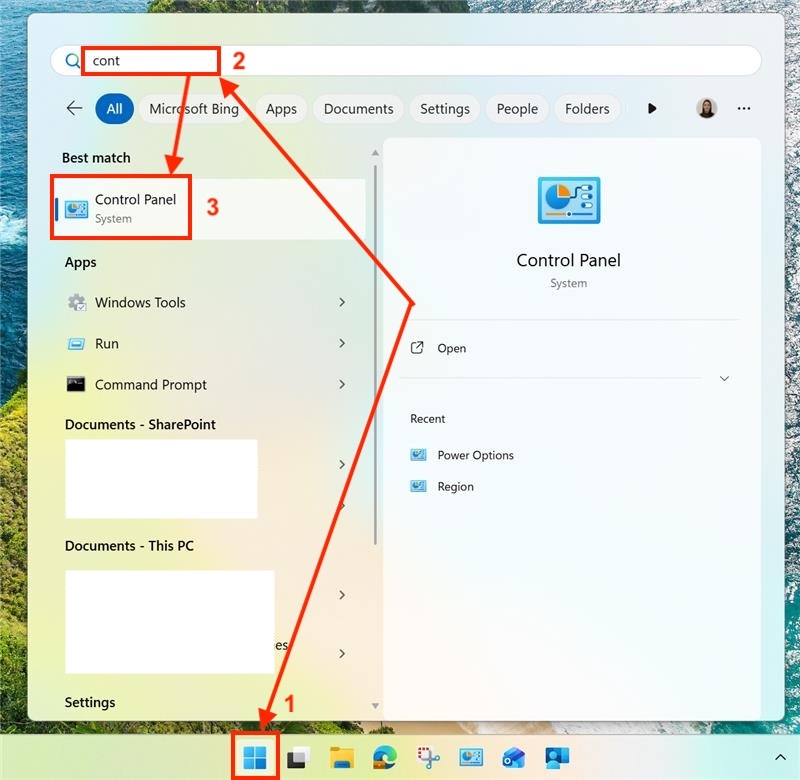
1, Select the Start menu in the bottom-left corner of the screen. Type Control Panel in the search field and open it.
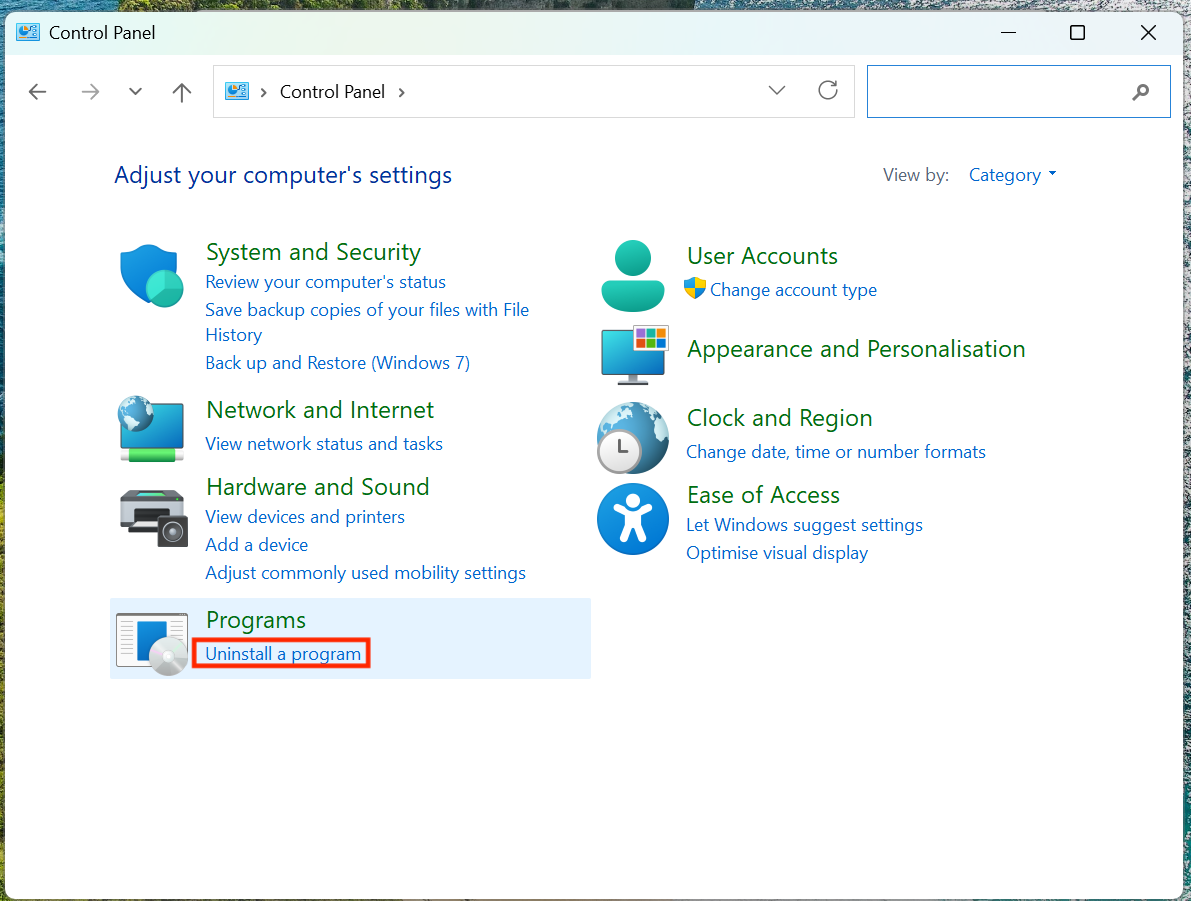
3, Select Uninstall a program under the Programs section.
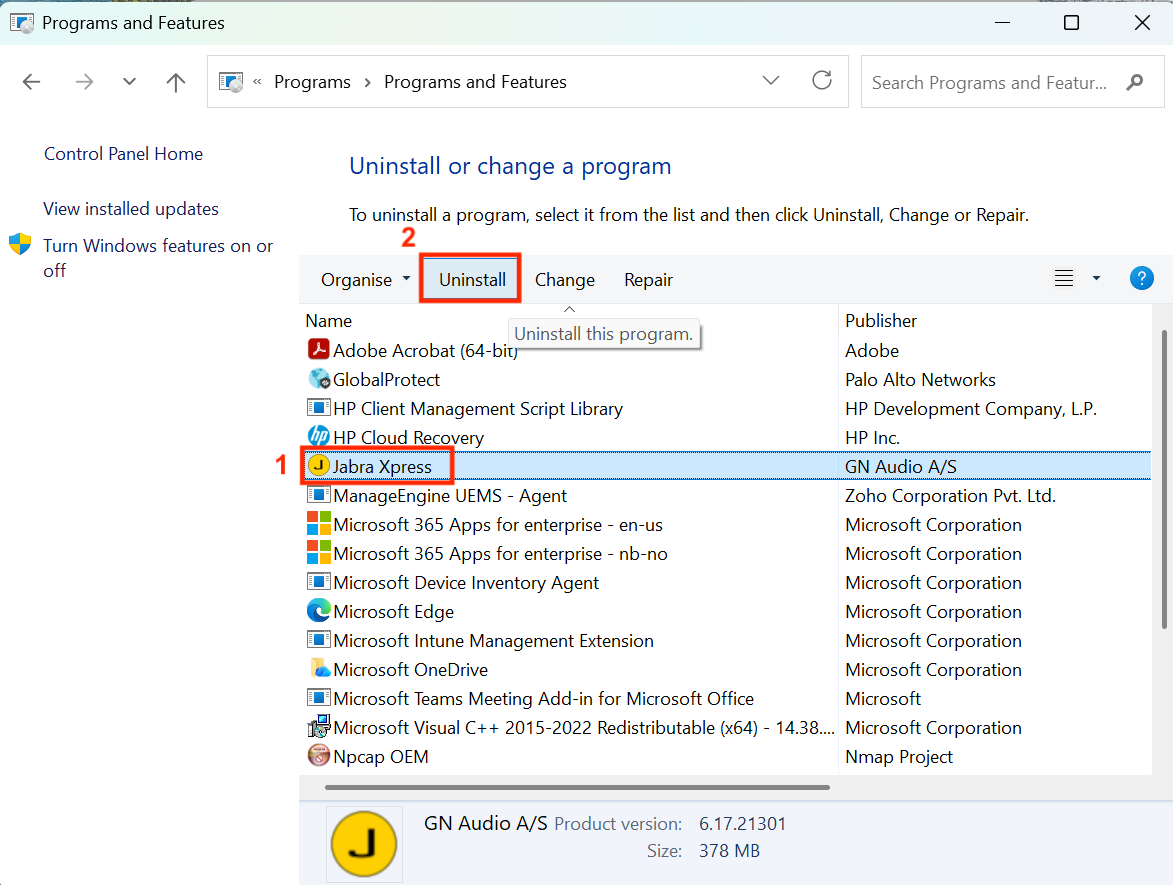
4, Find the program you want to remove in the list. Right-click the program and choose Uninstall, or select it and click Uninstall at the top.
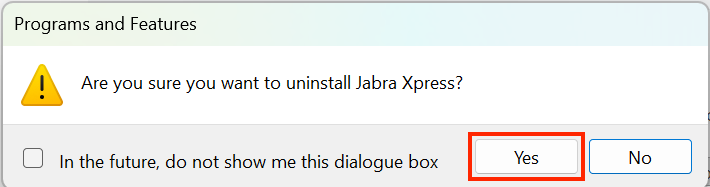
5, Follow the on-screen instructions to complete the process.
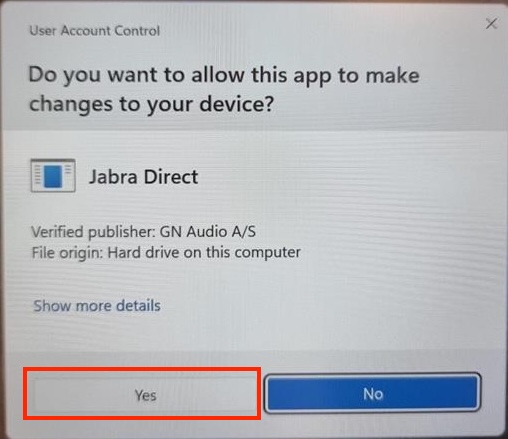
Remember to restart your computer after uninstalling a program to ensure that all the changes take effect.
Method 2 - Using Settings:
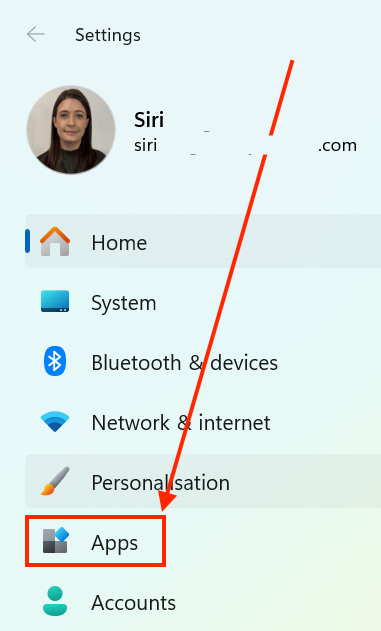
1, Press the Windows key + I to open Settings. Choose Apps & features from the left-hand menu.
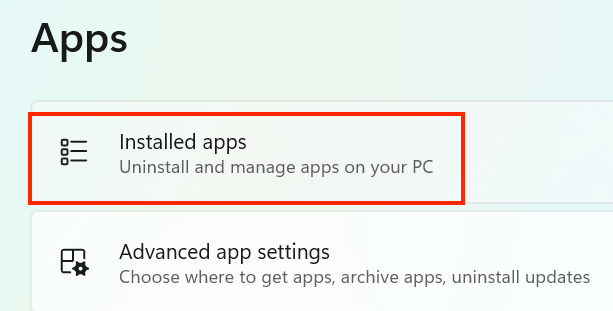
2, Click Installed apps.
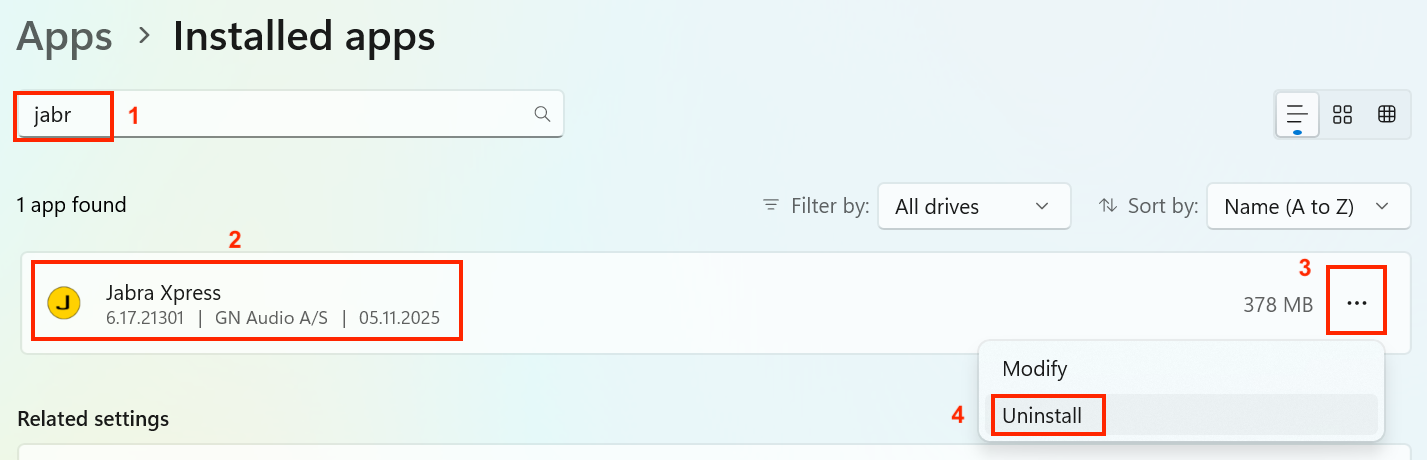
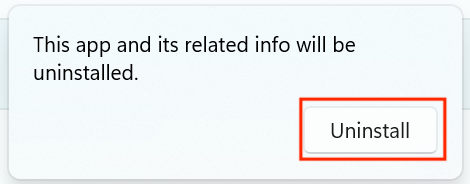
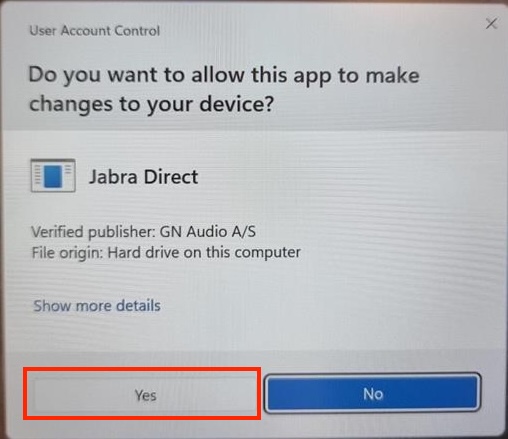
3, Locate the program you want to remove. Select it and click the 3 dots, and then Uninstall.
4, Follow the on-screen instructions to finish uninstalling.
Remember to restart your computer after uninstalling a program to ensure that all the changes take effect.
And you are done 😄